Keeping track of your income and how you
are spending your hard-earned money can seem daunting, but it really shouldn’t
be! Thankfully, banking apps like that of BPI are helpful not just for
safekeeping and growing your savings, but also ensuring quick, easy, and secure
transactions. Manifest a better banking experience this 2024 with these four pro
tips to maximize the BPI app and make it do more for you.
Always keep your BPI
app up-to-date
The Bank of the Philippine Islands is
continuously making improvements to its mobile app. By making sure you’re
running the most up-to-date version, you can be assured that your money and
info are safe because it only runs on secure devices – ones that run on iOS
14, Android 8, or higher and are NOT jailbroken, modified, or rooted.
For Android devices, make sure “Developer
Options” is turned off in the device’s general settings. These restrictions
help safeguard the BPI app from bad actors who might want to tamper with the
security measures it has in place.
Register the device
with your BPI-registered mobile SIM inserted
When you download the
BPI app and log in for the first time, you will be prompted to register your
device. This is another security feature that BPI has recently implemented.
This further ensures that only you can access your BPI account.
💡Hot tips:
Before you start, make
sure that your SIM has enough load to send at least 1 SMS and follow the
step-by-step instructions on the app to register to device.
Data-only SIM cards
are not capable of sending SMS so you can’t use these for device registration.
In case you want to
use your BPI app on a device with a different mobile SIM or you no longer have
access to your old number,
you’ll need to change your registered mobile number first.
Just head to online.bpi.com.ph and enter your login details. When you see the
“Send SMS OTP” prompt, click “Not your phone?” Enter the details of the BPI
product you have and your mobile number, and activate your new number at the
nearest BPI branch ATM.
Activate Mobile Key
Having Mobile Key turned
on lets you authorize transactions quickly and securely. With Mobile Key, you
skip the hassle of waiting for the OTP text, having to resend a new one when it
takes too long to come in, and then copy-pasting in between apps. Who doesn’t
want that?
Mobile Key also works as
a second layer of security so BPI knows it’s really you trying to access your
account. So when your device automatically updates apps, when you switch
devices, or when you access BPI online via a web browser, BPI will ask for
Mobile Key confirmation every time.
Enable “Push
notifications” and “Transaction alerts and offers” in your app settings to successfully
activate Mobile Key.
Pay straight from
your BPI app
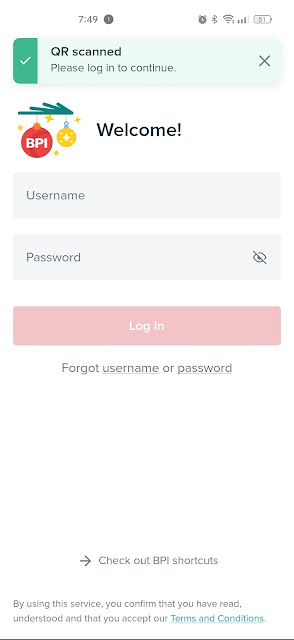

Did you know you can
now skip the extra step of loading up or cashing in to your e-wallets and simply
pay in stores straight with your BPI account? BPI’s pay via QR feature lets you
scan any QR Ph code and complete your transaction in 4 easy steps. Simply open
the app and the quick-access QR icon is already at the top right of the screen.
Scan the QR, login to your account, and choose the account you'd like to pay
from. Done!
Whether it's for
GCash, Maya, or other banks, as long as it has the QR Ph symbol in the middle,
you can scan it with the BPI app. Try it out in one of thousands of stores
nationwide that accept QR Ph payments!
Just a quick note: merchant QR Ph codes won't incur a
transaction fee. You’ll know it’s a merchant QR Ph when the top of the screen
says “Pay merchant” after you scan the QR. If it says “Transfer to other banks”
instead, this means this is a QR Ph for an individual account which may incur
transfer fees, so keep an eye out.
For more info and
BPI app troubleshooting tips, visit https://help.bpi.com.ph/s/.
You can also follow the official BPI accounts on Facebook
(https://www.facebook.com/bpi) and
Instagram (https://www.instagram.com/officialbpi/) to get the
latest updates on the BPI app and all things BPI,


No comments:
Post a Comment